Reviewing changes
Validation reviews incoming OSM changes according to your territory, business groups and review rights. It decides what can enter the local reference; it does not send edits to OSM.
Review an object
- Choose the working territory and filters. Zoom in from the density view.
- Select an object on the map or in the tree.
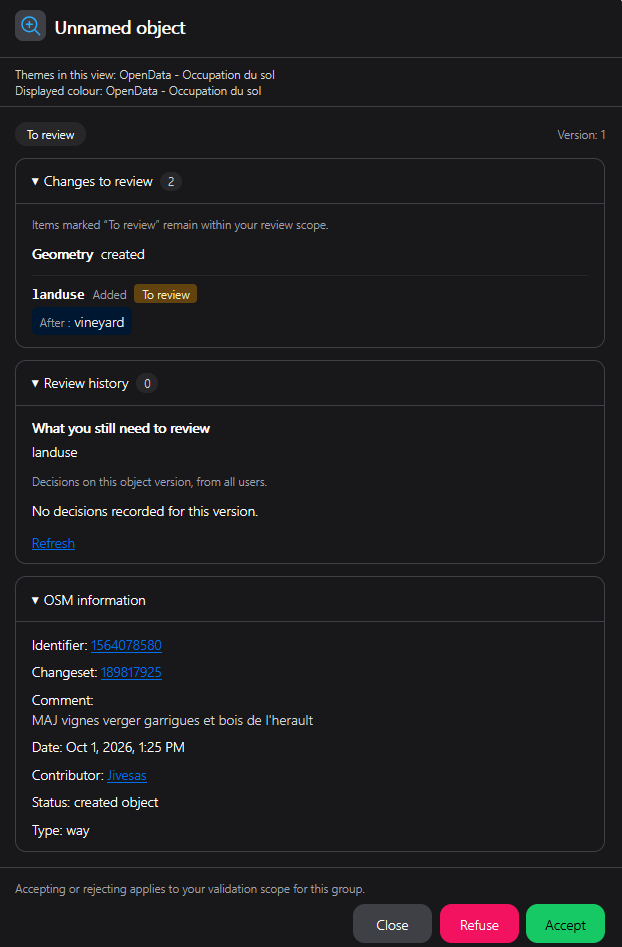
- Read Changes to review: added, removed and changed tags, plus geometry information. Tags are alphabetically sorted. The counter includes one geometry change when applicable, not a count of moved vertices.
- Open Verification tracking to see existing decisions. Inspect OSM information and Unchanged attributes when needed.
- Use Accept or Reject for the changes within your review scope. Check the updated state before continuing.
OSM information links identify the object and changeset. Opening an OSM link shows OSM's current information, which may be newer than the version being reviewed in LeBonTag.
Partial validation and shared responsibilities
A business group may review only certain tags or geometry. The Within your scope indication identifies relevant changes. Another group may still have work to do after you accept your part. Verification tracking makes those partial decisions visible.
Acceptance by one user is therefore not always final approval of the complete change. Even a fully approved object can wait for integration if a dependency is awaiting review or has been refused. See Integration monitoring.
Geometry tolerance is applied during change analysis. A small movement can be below that threshold and not require a geometry review. It still represents real coordinates that the integration service must handle consistently.
Multiple selection
Use the map, the tree or the enclosing selection tool to select several objects. Purple styling and the selection count indicate what is selected. Clear unrelated selections before making a collective decision. Quality does not provide this multiple-selection workflow.
Find similar changes
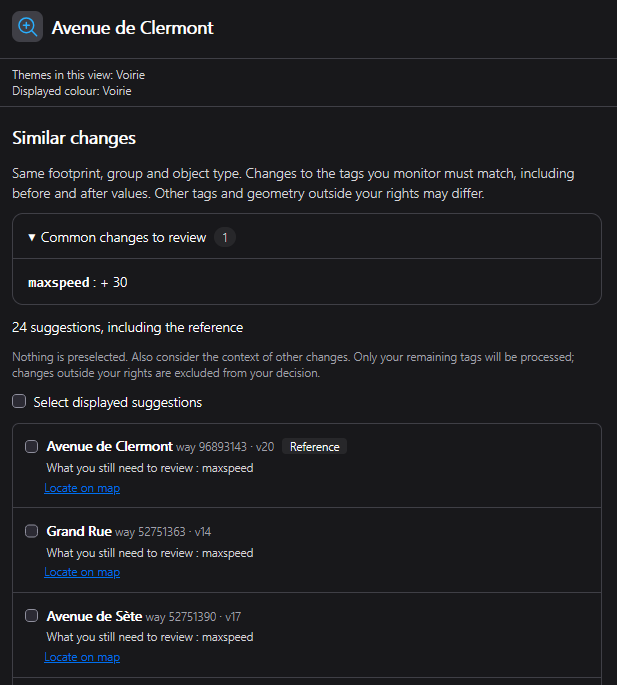
- Start from a representative object and open Find similar changes.
- Inspect the proposed objects and the scope of comparison.
- Select the displayed proposals, then review the resulting map selection.
- Explicitly accept or reject the selection.
Similarity concerns the changes you monitor, not identical complete objects. Other tag changes can differ. Geometry differences are ignored by this comparison when geometry is outside the relevant review scope. Objects still need to satisfy the search's access and eligibility checks.
The search keeps creations, modifications and deletions separate. Creations are eligible when geometry is not monitored; modifications are eligible when geometry is unchanged or not monitored. Deletions are eligible even when geometry is monitored: their previous shapes need not match. Watched tag changes must still match. For deletions, any remaining geometry check is included in the group decision and explicitly shown in the confirmation. Checks already completed by you are not repeated. This does not send edits to OpenStreetMap.
Finding proposals does not validate them. If there is no other eligible object beyond the reference, an information message replaces a list containing only that reference.
Search scope and proposal selection
Search defaults to the Working territory, within your access rights. Choose Current view to include only objects whose centroid lies within the area visible when the search runs. The reference may lie outside this area and still provides the comparison criteria.
Panning or zooming does not rerun the search. Run search again captures the new view and clears the selection. Changing scope also clears the selection. Results remain limited to 100 proposals; a message indicates additional matches.
Select everything in this list selects the loaded proposals, including those outside the visible map. The counter shows the total selection; the tree reflects and counts only selected objects currently present in it. While this search is open, adjust and review the batch from the proposal list.
Fit selection preserves the batch even when zooming out to the heatmap. Selected objects remain purple, using a purple selection heatmap in overview mode. Clear the selection from the list when needed. Closing the sheet or changing territory ends this temporary selection.
When an object is missing or a decision is unavailable
Check the territory, filters, group display limit and rights. A non-empty group can display only part of its total. A technical failure loading verification tracking should be reported rather than bypassed by editing database statuses. Do not assume a missing object has already been integrated.
Object colours and action badges
Two display modes are available in My account → Settings → Validation object appearance:
| Mode | Colour | Action |
|---|---|---|
| Colour by action | Blue, yellow, red | Created, modified, deleted respectively |
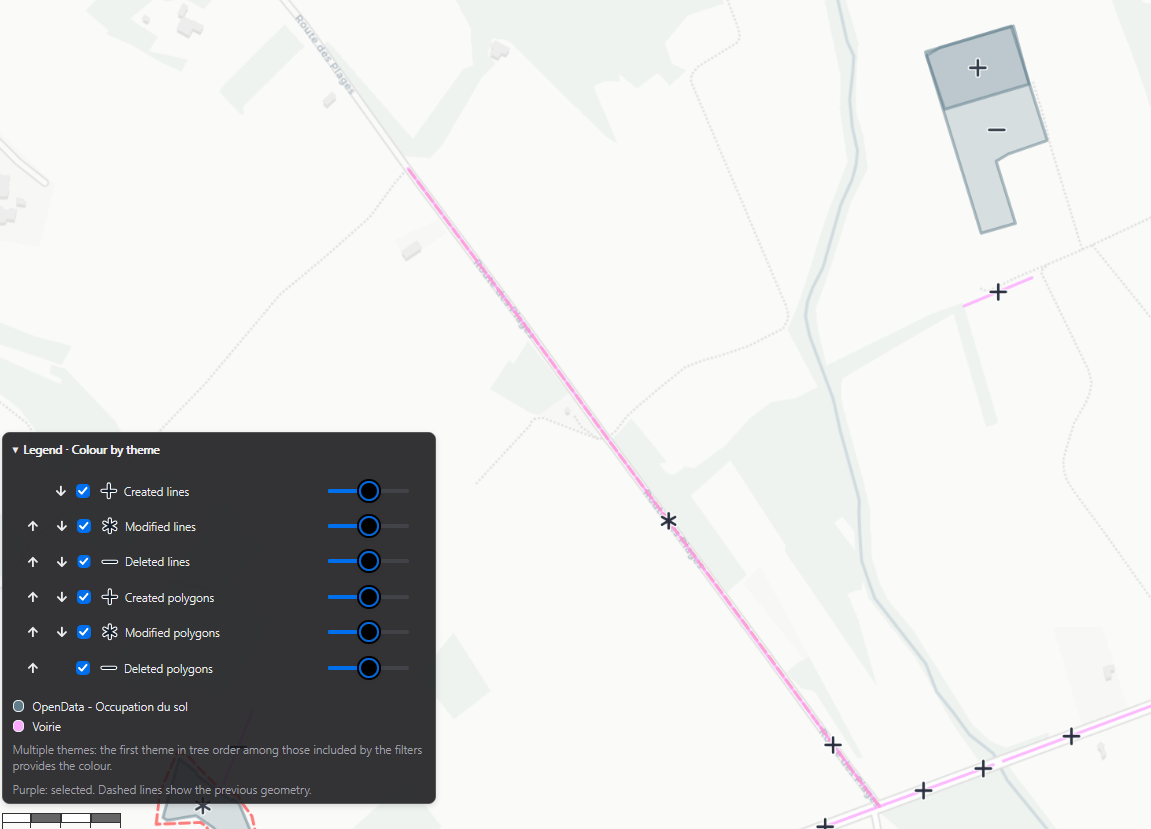
| Colour by theme | Theme colour, matching the tree | + created, ∗ modified, − deleted |
The initial default remains colour by action. In theme mode, points and centroids use a coloured disc; lines use a coloured stroke; polygons use a coloured outline and light fill. One neutral action badge is placed on each object, with collision avoidance. Selected and hovered badges take priority. A badge may be hidden in dense areas: zoom in or hover over the object.
The Legend at the bottom left can be expanded. It shows actions and, in theme mode, the displayed theme colours. Purple selection, the hover marker and dashed previous geometries remain available. Heatmap colours continue to describe density independently.
An object may belong to several groups or themes. Only one feature is drawn per type / ID / version. The first theme in tree order among the memberships retained by the filters supplies its colour. The sheet lists the themes present in the loaded, filtered view and names the one used for the colour. This display rule does not combine review rights or change the group being reviewed. Filtering to one theme uses that theme's colour.
Adjustable information window
Drag the sheet by its title and resize it using its edges or corners. Top-right controls minimize, maximize over the map, restore, reset size and position, or close the sheet.
Minimizing preserves the content and inputs: only the title bar remains visible and the map remains usable. Similar-change proposals and checked items are preserved. Maximizing covers the map area; restoring returns to the normal dimensions.
Size and position are stored in the tab session, separately for Validation and Quality, without database storage. Reopening a sheet uses normal mode. On small screens, the sheet fills the available screen without resize handles. Action buttons stay at the bottom while the central content scrolls.
Dock the sheet on the right
Dock on the right reserves a panel for the sheet and resizes the map into the remaining space. Undock sheet restores its floating size and position. Content and selection are preserved.
Drag the panel’s left separator to adjust its width, or focus it with Tab and use the left/right arrow keys. At least 320 pixels remain available for the map. Minimizing releases the map space; restoring returns the sheet to its dock.
Docking and panel width are remembered in the tab session, separately for each module. When space becomes too narrow, the sheet temporarily switches to floating mode or full screen on mobile. Closing returns the full width to the map. Reset also clears the docking preference.
You can also drag the sheet by its title towards the right edge of the map area. When the sheet’s right edge comes within 30 pixels of the map’s right edge, a translucent preview displays Release to dock on the right. The map only resizes on release. Move the sheet away or press Escape to cancel. This gesture applies to a normal floating window, not while resizing, minimized, on mobile or when there is insufficient space. The docking button remains available.
Adjustable filter window
The filter window can be moved by its title, resized from its edges or corners, minimized to a title bar and maximized within the map area. Its body scrolls while the title and action buttons remain visible. Minimizing keeps the controls mounted and preserves the filter choices, so you can inspect the map without closing the window. Reset size and position with the title-bar reset button; this does not reset the filters. Window geometry is stored for the current browser tab.
Selection across zoom levels
Objects selected manually in the tree, on the map or with area selection remain selected when zooming, moving the map, filtering or refreshing the viewport. At overview zoom, they appear as a purple density layer. Zooming back in restores their highlighted representation and checked boxes for objects present in the tree. The counter includes all selected objects, including those outside the loaded view or hidden by filters. Validation/refusal applies to this entire selection.
Use Deselect all or uncheck objects to remove them. Switching territory clears the selection. Successfully accepted/refused objects are removed from the selection; a failed validation request preserves it. Selecting a different object on the map or drawing a new selection area explicitly replaces the manual selection. The selection is kept in memory while the module remains mounted, not saved across page reloads.