Checking data quality
Quality identifies objects in the local reference that match the rules accessible to your business groups. A finding is an invitation to investigate, not proof that OSM is wrong.
Work through findings
- Select your territory and, if needed, filter by rule name.
- Locate concentrations in the overview; zoom in to display individual objects.
- Select a rule entry or an object. Read the rule description, alphabetically sorted attributes and OSM information.
- Investigate the problem and carry out any necessary correction through your normal OSM or data-maintenance workflow.
- Use Resolve to record that this finding has been processed.
The map uses the same purple selection and hover marker as Validation, but selects one object at a time. See Maps.
Understand the tree and totals
A label such as Missing capacity tag (50 / 113) means 50 displayed findings out of 113 matching the applicable scope. The administrator's display limit avoids loading every detailed object at once. Filters and territory determine the relevant total.
Several rules can report the same object. Counts of findings therefore differ from counts of distinct OSM objects. A zero result can also reflect your rights, filters or the current reference state.
What Resolve does
Processing is recorded against the OSM type, identifier, version and rule instance, with the user and date. It does not change OSM tags or geometry, approve an incoming change, or guarantee that a correction has been published externally. A new version or another rule can require another examination.
If the rule itself is inappropriate, ask an administrator to adjust its definition or team assignment. Do not mark a whole class of unexplained findings as resolved simply to clear a counter.
Quality examines the local reference. New OSM data waiting for approval or integration is not necessarily reflected there yet. Consult About and integration monitoring when comparing with the live OSM website.
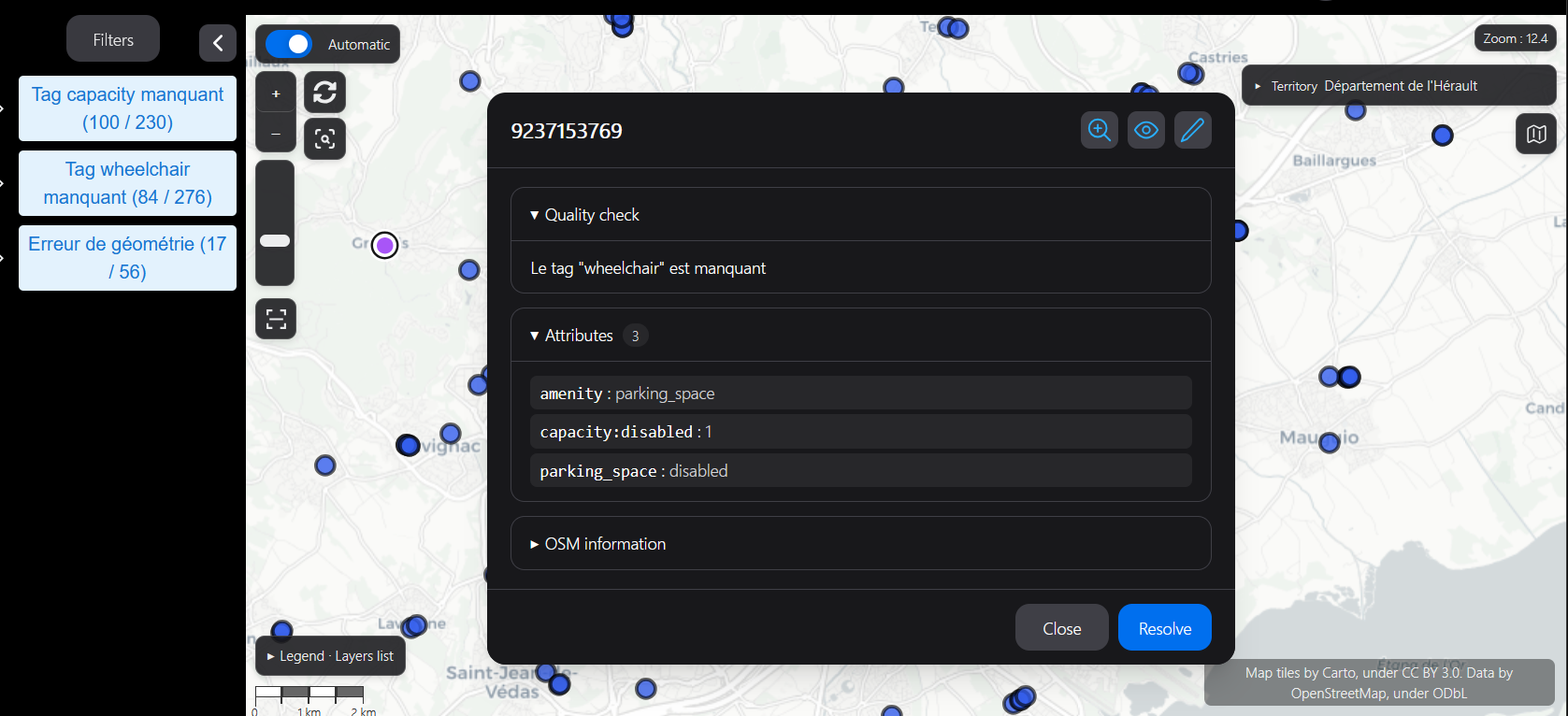
Adjustable information window
Drag the sheet by its title and resize it using its edges or corners. Top-right controls minimize, maximize over the map, restore, reset size and position, or close the sheet.
Minimizing preserves the content and inputs: only the title bar remains visible and the map remains usable. Maximizing covers the map area; restoring returns to the normal dimensions.
Size and position are stored in the tab session, separately for Validation and Quality, without database storage. Reopening a sheet uses normal mode. On small screens, the sheet fills the available screen without resize handles. Action buttons stay at the bottom while the central content scrolls.
Dock the sheet on the right
Dock on the right reserves a panel for the sheet and resizes the map into the remaining space. Undock sheet restores its floating size and position. Content and selection are preserved.
Drag the panel’s left separator to adjust its width, or focus it with Tab and use the left/right arrow keys. At least 320 pixels remain available for the map. Minimizing releases the map space; restoring returns the sheet to its dock.
Docking and panel width are remembered in the tab session, separately for each module. When space becomes too narrow, the sheet temporarily switches to floating mode or full screen on mobile. Closing returns the full width to the map. Reset also clears the docking preference.
You can also drag the sheet by its title towards the right edge of the map area. When the sheet’s right edge comes within 30 pixels of the map’s right edge, a translucent preview displays Release to dock on the right. The map only resizes on release. Move the sheet away or press Escape to cancel. This gesture applies to a normal floating window, not while resizing, minimized, on mobile or when there is insufficient space. The docking button remains available.
Adjustable filter window
The filter window can be moved by its title, resized from its edges or corners, minimized to a title bar and maximized within the map area. Its body scrolls while the title and action buttons remain visible. Minimizing keeps the controls mounted and preserves the filter choices, so you can inspect the map without closing the window. Reset size and position with the title-bar reset button; this does not reset the filters. Window geometry is stored for the current browser tab.