Maps and navigation
Validation and Quality share territory selection, backgrounds, density views and navigation controls. Their selection tools differ: Validation supports several objects; Quality examines one object at a time.
Navigate and zoom
- Drag with the main mouse button to pan normally; use the wheel or zoom buttons to change scale.
- Activate the rectangle zoom tool, then drag a rectangle around the desired area. This is a one-shot mode: normal panning resumes afterwards. Press Escape to cancel.
- Use the territory selector to change the working area. Collapse it when you need more map space.
- Collapse the side panel or density legend to keep the area of interest visible.
Density, points and geometries
Below the zoom level set by the administrator or user (12 by default), the overview displays a heatmap. Its gradient describes relative concentration, not validation status or quality severity. The displayed total covers the view and its query margin; it is not a count for every object in the whole territory.
At larger scales, selectable objects replace the heatmap. Points and simplified or complete geometries are used according to zoom and module settings. Zoom in to inspect an individual shape. Switching back to the overview clears selected objects.
The overview aggregates authorised objects without the detailed per-group display limit. Objects may occur in several group totals while the map density counts them once. Filters still matter: a heatmap is not an unrestricted view of the database.
Selection and hover
Selected objects are purple. A surrounding marker or halo highlights the hovered object without replacing its status colour. The number of selected objects in Validation is the reference before accepting or refusing a multiple selection.
An overview cell is not a selectable OSM object. Zoom in before opening a detail sheet or making a decision. The layers control can be absent in overview mode; it becomes useful for detailed object layers.
Background maps
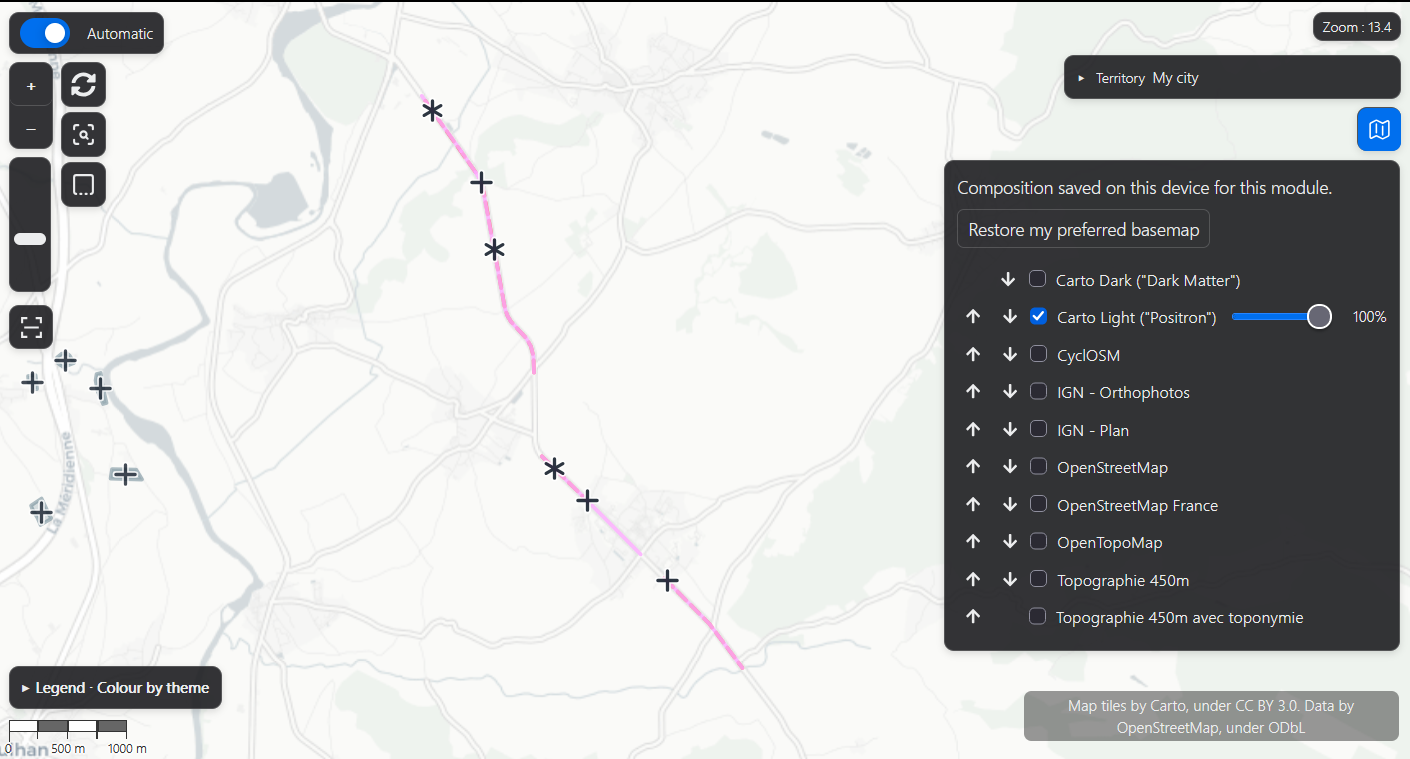
Open the backgrounds control to enable available tile, WMS or WMTS layers. Several layers may be combined, for example a transparent overlay above a base map. Check ordering and opacity if one layer hides another.
The preferred background in account settings is a starting choice. The locally remembered active composition preserves your working combination in this browser. Thus several active backgrounds are compatible with a single preferred background. Removed or unavailable server layers cannot be restored by a preference.
The density palette and footprint outline/fill can be personalised in Account settings. The administrator alone controls the maximum detailed objects per group.