Administration overview
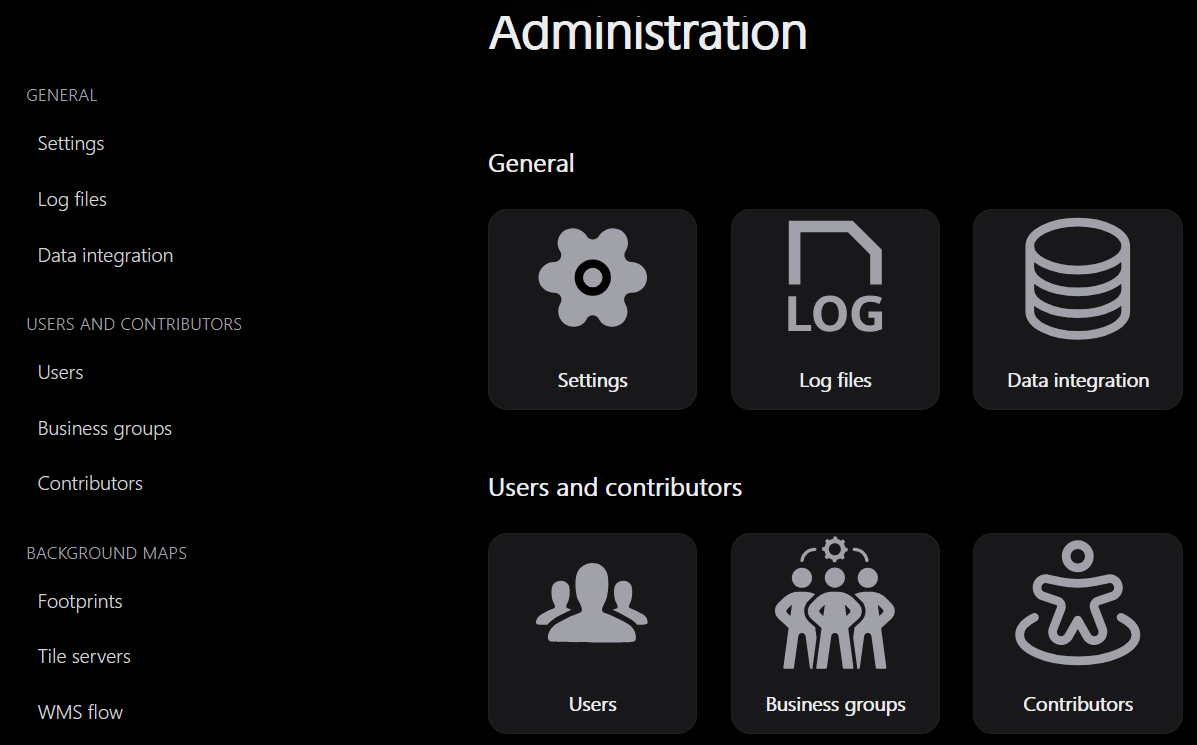
Administration is available to accounts with the administrator role. Its home page and side menu lead to the same management areas.
Configure in a useful order
- Define territories and assign them to users.
- Define themes and object groups for the objects your teams monitor.
- Organise business groups, their users and their validation rights.
- Configure quality rules and assign them to business groups.
- Provide backgrounds and instance defaults, then check the result with an ordinary user account.
- Configure optional emails and supervise replication, integration and segmentation.
| Area | Guide |
|---|---|
| Users, roles, territories and business groups | Access and responsibilities |
| Themes, object groups, review rights and quality rules | Rules and groups |
| Tile, WMS and WMTS backgrounds | Background catalogue |
| Modules, colours, data paths, tolerances and retention | Settings |
| SMTP and email delivery follow-up | Email administration |
| Integration batches and segmentation runs | Data publication monitoring |
| System journals and troubleshooting | Operations · Troubleshooting |
The contributors area manages the contributor information used by the application; check its effect on the relevant filters and rules. An OSM contributor is not necessarily a LeBonTag user.
Separate configuration from operation
The Settings page stores application parameters. It does not install packages, replace environment files, migrate SQL schemas or reload systemd units. Follow Installation or Upgrade for these server operations.
Integration monitoring is a diagnostic interface. Viewing a batch does not execute an append. Avoid changing statuses directly in SQL to make a warning disappear: statuses, decisions, contexts and execution journals must remain consistent.
Log files
Open Log files, browse directories, choose the sort order, then view or download the relevant file. This covers logs exposed by the application; it does not replace journalctl for systemd services or the reports under osm/integration/runs/. Use the incident time and job name to locate the right file.
Adjustable administration windows
Creation and editing forms, feed authentication, log viewing and integration details can be moved by dragging their title, and resized from their edges or corners. Use the title-bar buttons to maximize, restore or reset size and position. The body scrolls independently while the title and action buttons remain visible.
Resizing does not submit the form or clear unsaved inputs. These dialogs retain their modal behaviour: close or complete the form to return to administration. Short deletion confirmations keep their compact layout. On narrow screens, the window uses the available viewport.
Size and position are remembered in session storage for the current browser tab, separately for each kind of form. They are not account preferences stored in the database. Resetting the window affects only its size and position, not its fields.