Background catalogue
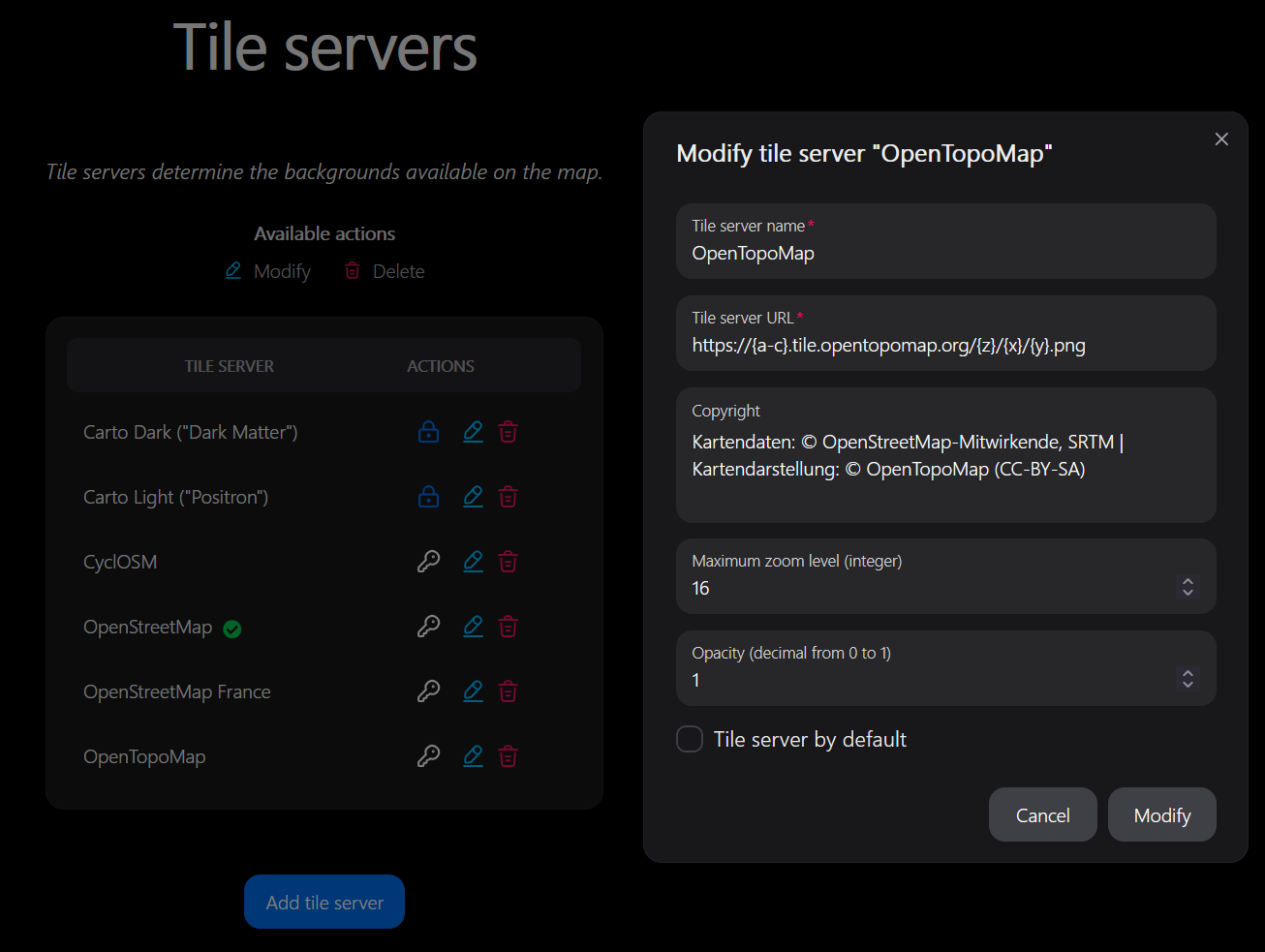
Administrators manage the backgrounds offered in Validation, Quality and the account's preferred-background selector. Users choose among these resources; a user preference does not create a new server.
Choose the appropriate resource
| Resource | Typical configuration to check |
|---|---|
| Tile server | Tile URL template, attribution, default visibility and opacity |
| WMS | Service URL, layers and supported request/projection settings |
| WMTS | Service URL/capabilities and matching layer, matrix set and format settings |
Use the fields supplied by the appropriate administration form. A URL alone does not guarantee compatibility: the server must support the requested layer and coordinate system and allow browser access.
Add and verify a background
- Create a resource with a recognisable name and the provider's required attribution.
- Configure its service-specific fields and opacity; choose the instance default where offered.
- Save and open a map as a user.
- Test at several zoom levels and verify alignment with OSM objects.
- Test overlays above the base map, including order and transparency.
Prefer HTTPS resources for an HTTPS application. For a blank layer, inspect browser/network errors, server capabilities, access restrictions and configuration before changing map data.
Personal choices and resource changes
The instance default is the fallback. An account can select a preferred background, and each module can remember the active composition locally for that user. Local composition includes active layers, order and opacity; it can legitimately differ between browsers or modules.
Renaming a resource is different from deleting and recreating it: saved choices refer to resource identifiers. After removing a resource, users may need to choose another available background. Avoid publishing private service credentials in a URL exposed to browsers.
Protected feeds
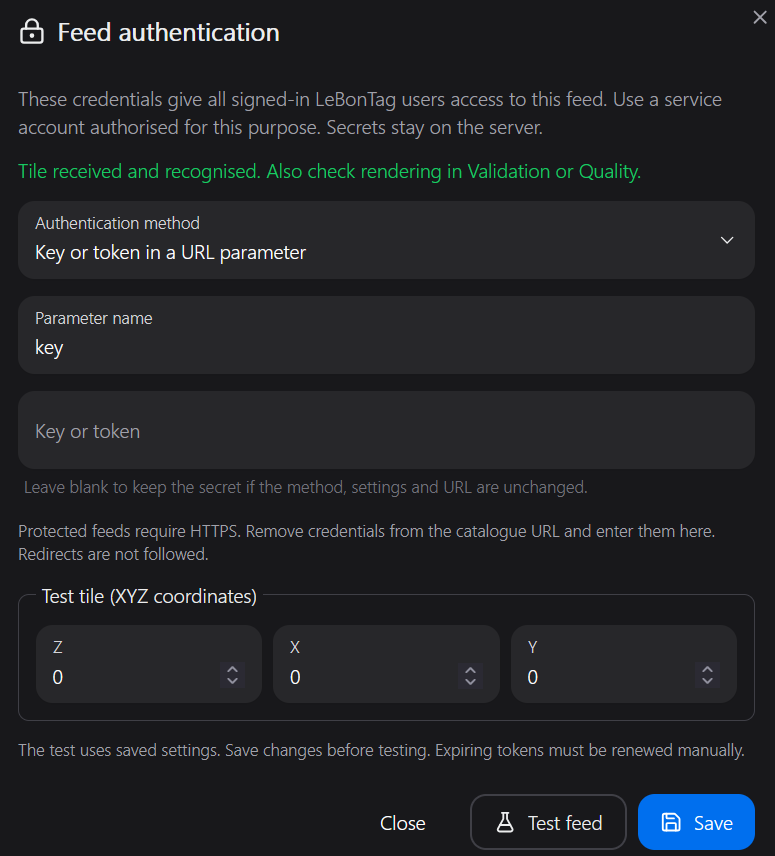
After saving a tile, WMS or WMTS resource, use its key/lock button to configure Feed authentication. A lock indicates a configured method, not a successful connection test. Each feed has independent credentials.
| Method | Fields | Typical use |
|---|---|---|
| HTTP Basic | Username and password | Protected GeoServer or other HTTP services |
| Bearer | Token, without the Bearer prefix | A provider accepting Authorization: Bearer … |
| API key in a header | Header name and key | For example X-API-Key |
| Key/token in a URL parameter | Parameter name and secret | For example key, authkey, token or access_token |
| None | No secret | Existing direct browser access |
Use the method specified by the provider; “username/password” does not necessarily mean HTTP Basic. HTTP Digest, NTLM/Kerberos, client certificates, browser login/SSO and OAuth2 token acquisition/automatic renewal are not implemented. An already-issued OAuth2 access token can be entered as a Bearer token until it expires. ArcGIS tokens can use the query-parameter method; generation and renewal remain external.
- Enter a credential-free HTTPS URL in the original feed form. Keep functional query parameters such as
SERVICE,REQUESTandVERSION. For WMTS, keep the working GetCapabilities URL. For XYZ, keep the existing coordinate template. - Open authentication, select the method, fill in its fields and save.
- Use Test feed. WMS/WMTS tests read capabilities; they do not prove that every layer/tile is accessible. XYZ tests request one raster tile; choose Z/X/Y within the service coverage (the default 0/0/0 may not exist).
- Open Validation and Quality and check the layer at several zoom levels. Reload an already open map after changing credentials.
A blank secret retains the saved value only when the method, username/key name and URL are unchanged. A changed URL blocks the protected feed until credentials are entered again and saved. Selecting None and saving deletes the secret. Expired tokens must be replaced here. A failed test does not erase the saved configuration.
Credentials are shared by the instance's signed-in users through this feed. Use a service account whose licence and access rights permit this use. Provider restrictions based on browser Referer may not work through the server relay; authorise the LeBonTag server's outgoing IP where appropriate.
Server configuration
Set these variables in the existing .env.production.local, or .env.development.local for development; no additional configuration file or service is required:
LBT_MAP_ENCRYPTION_KEY=<64 hexadecimal characters>
LBT_MAP_PRIVATE_ORIGINS=
Generate an independent key, then copy it into the environment file with sudoedit. Do not replace an existing key during an update. Back it up with the environment: changing or losing it requires re-entering every feed secret.
openssl rand -hex 32
sudoedit /opt/lebontag-v2/.env.production.local
sudo chown root:lbt-integration /opt/lebontag-v2/.env.production.local
sudo chmod 0640 /opt/lebontag-v2/.env.production.local
sudo systemctl restart lbt-web.service
For Docker, update the same environment file and recreate the web container according to Docker installation. The key is read by the Node server, never sent as a NEXT_PUBLIC_* variable.
The relay refuses private IP addresses by default. To permit an HTTPS intranet server, list its exact origin, including a non-default port when applicable. Origins are comma-separated, without paths or trailing slashes. Loopback and link-local/metadata addresses remain forbidden.
LBT_MAP_PRIVATE_ORIGINS=https://gis.example.internal,https://maps.example.internal:8443
The server must resolve these hosts, reach them and trust their TLS certificates. DNS results are checked and pinned to each connection. Credentials are encrypted in the database using AES-256-GCM. The application must be served over HTTPS in production to protect administrators entering secrets.
Relay behaviour and limits
Protected images pass through LeBonTag; public feeds retain direct access. Browser catalogue responses contain opaque same-origin URLs. The relay requires a signed-in session, uses only registered/signed destinations, does not follow redirects and returns neither credentials nor upstream error bodies. WMS requests are restricted to the configured layers. WMTS capabilities are filtered to the configured layer and their KVP/REST tile URLs are rewritten. Protected WMTS capabilities and tile endpoints must use the same origin; multi-origin services need a suitable provider endpoint or an upstream gateway.
Supported raster responses: PNG, JPEG, GIF and WebP. XYZ supports {z}, {x}, {y}, {-y} and standard subdomain ranges such as {a-c}. Vector tiles/PBF and SVG are not supported by this relay. WMTS standard TIME/ELEVATION and REST template dimensions work; other custom KVP dimensions require adaptation. Requests are limited to 15 seconds, 8 MiB per response and 32 simultaneous upstream requests per web process (16 per user). WMS width/height are capped at 8192 pixels. Responses use private, no-store; budget server bandwidth accordingly.
Provider references: GeoServer HTTP authentication, GeoServer authkey, ArcGIS token generation and expiry, MapTiler API keys.
Choose WMS and WMTS layers from capabilities
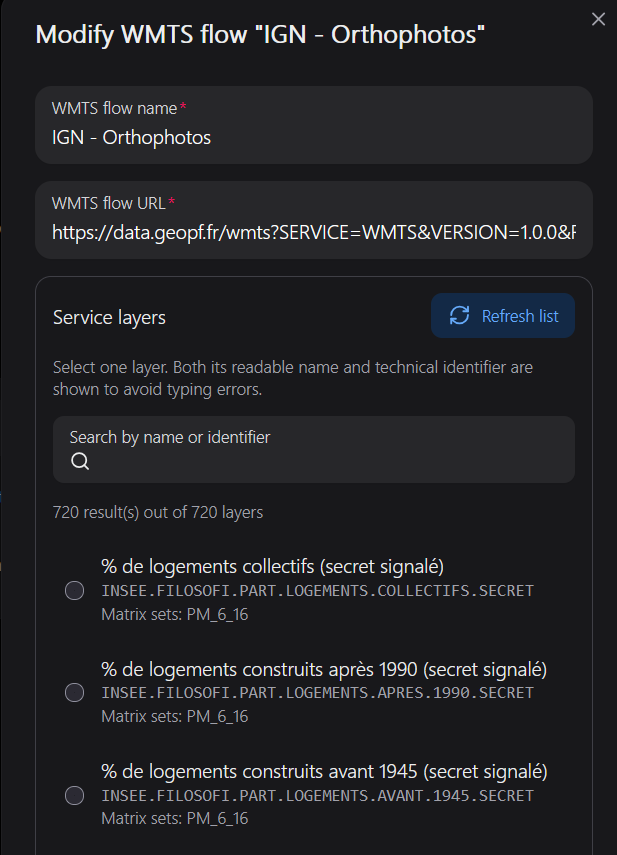
In the add/edit form, enter the service URL and click Load layers. LeBonTag reads GetCapabilities on the server and displays the readable title and exact identifier of each named layer. Search by title or identifier; the first 100 matches are shown, with the total count. Refine the search to reach any other layer.
- WMTS: select one layer. Its available matrix sets are displayed for information; the map's existing matrix selection is unchanged.
- WMS: select one or more layers. Identifiers are kept in selection order, separated by commas. A supported image format is filled in when selecting a layer, preferring PNG then JPEG; the format field remains editable.
- The chips show the current selection and allow removal. A selected identifier absent from successfully loaded capabilities is highlighted, rather than silently replaced.
- Manual entry (advanced) remains available for unavailable services or special configurations. A failed request never clears your saved selection.
WMS 1.1.1/1.3.0 and WMTS 1.0.0 capabilities are supported. Named WMS groups and their sublayers are included, with inherited coordinate systems. Only metadata needed for selection is returned, not raw XML or connection credentials. The listing endpoint is administrator-only and uses the same HTTPS/network protections as the feed relay, including the intranet allowlist and response-size limit. The service must be reachable from the LeBonTag server. Successful listing does not guarantee browser CORS access or map projection compatibility.
For an existing protected feed, the saved authentication is used automatically. If you change its URL, save that change and confirm credentials using the key button before reopening the layer selector.
For a new protected WMS/WMTS, expand New feed authentication (optional) within the selector, enter credentials, then load the layers. Credentials are used for discovery but not saved at that point. Adding the feed saves both the feed and encrypted authentication in one transaction; cancelling creates neither. An encryption key must already be configured. Subsequent credential changes use the usual key/lock button. Tile/XYZ feeds have no capabilities catalogue and retain their URL template form.
Example for IGN orthophotos: use https://data.geopf.fr/wmts?SERVICE=WMTS&VERSION=1.0.0&REQUEST=GetCapabilities, search for ORTHOIMAGERY.ORTHOPHOTOS, then select that technical identifier. A dataset/catalogue title is not necessarily a WMTS layer identifier.